

In this lesson I am going to show you how to add a toggle switch to your formulas in Google Sheets, so that you can either turn your formulas on and off with a checkbox, or so that you can make your formulas perform different operations according to whether a checkbox is checked or not.
To do this we will use the IF formula, and a checkbox.
Step 1: Create Your Base Formula
First start by creating your base formula that you want to modify and be able to control with a checkbox.
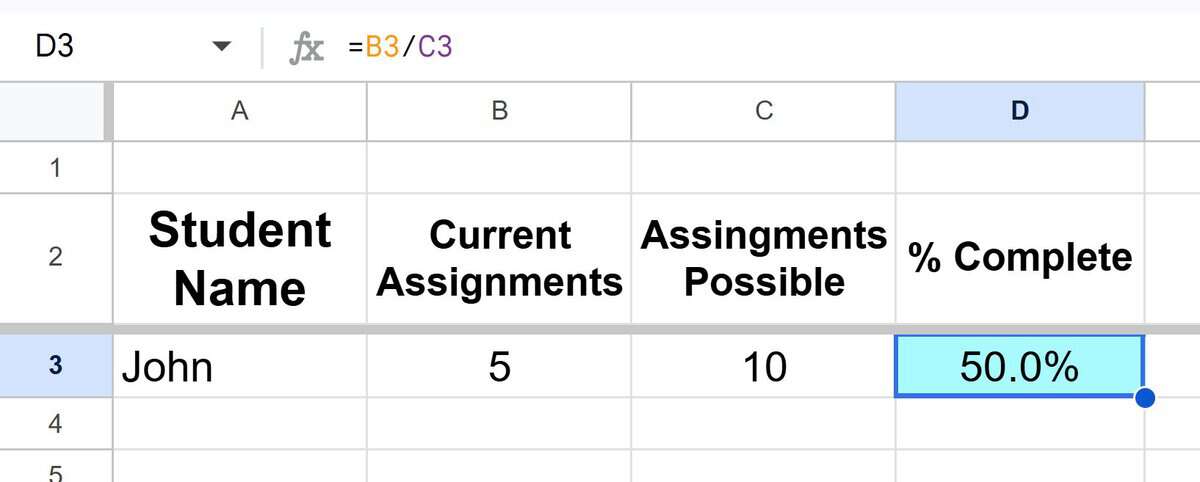
In this case we are dividing cell B3 by cell C3, which shows us the percent completion that a student has in a course. As you can see and sell D3 (blue cell), the formula is giving us a result of 50%.
Formula: =B3/C3
Step 2: Insert a Toggle (Checkbox)
Now let’s insert a checkbox that we can use to control the formula.
- Select a cell (e.g., D1)
- Go to Insert → Checkbox
This creates a clickable switch:
Checked = TRUE
Unchecked = FALSE
You now have a logical control input for your formula.
Step 3: Wrap the Formula with IF
Now let’s add the IF formula so that we can tell Google Sheets what to do when the checkbox is checked, and what to do when it is unchecked. First we will set up the formula so that it performs the normal calculation when the checkbox is checked, and so that the cell is blank (formula turned off) when the checkbox is unchecked.
Modify your formula so it only runs when the checkbox is enabled:
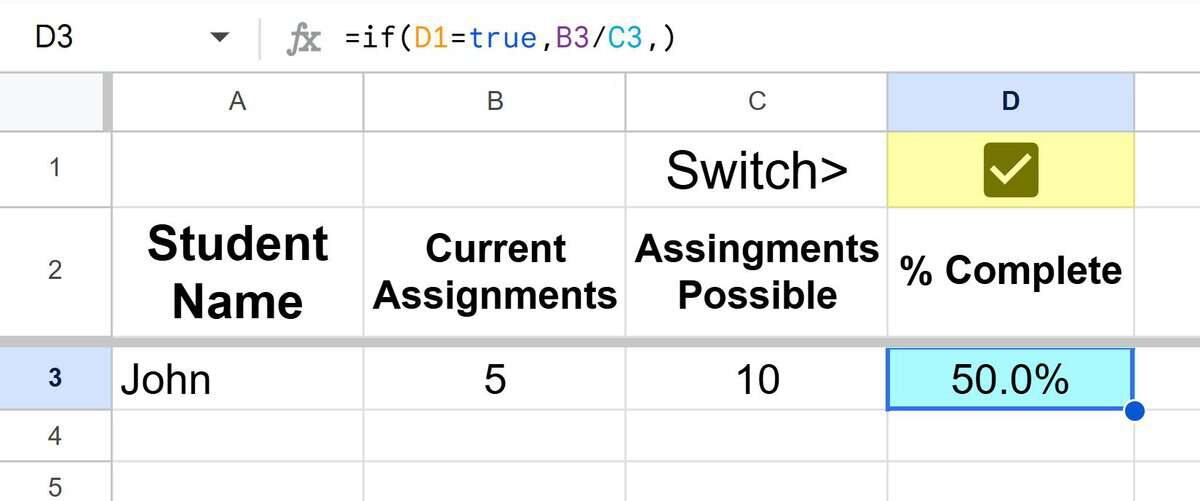
Formula: =IF(D1=TRUE, B3/C3, )
What this does:
If checkbox is checked → shows result (B3/C3)
If unchecked → returns blank
In the image directly below you can see that the checkbox is selected and that the formula is performing the calculation and displaying the result.
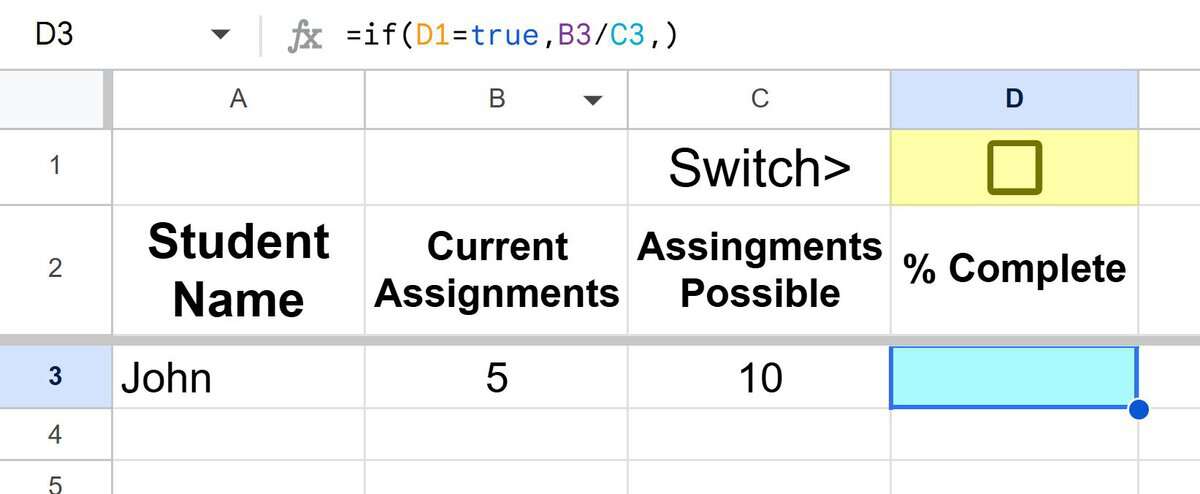
In the image below you can see that the checkbox is unselected and that the formula is displaying a blank cell.
Step 4: (Optional) Show custom text
If you want, instead of leaving the cell blank, you can display a text label.
Let’s modify the formula so that it will display the word “Off” when the checkbox is unchecked.
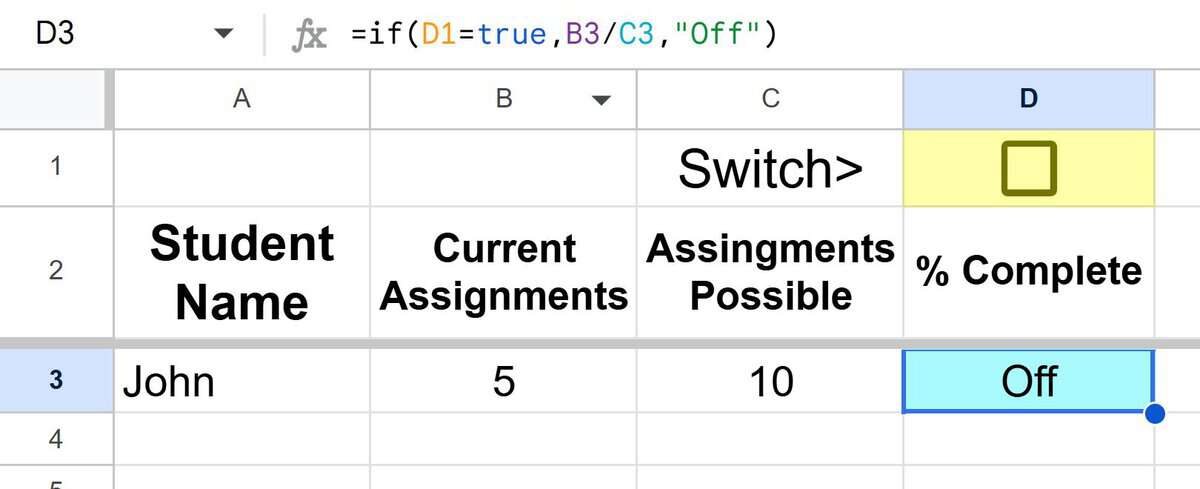
Formula: =IF(D1=TRUE, B3/C3, “Off”)
Now, when the checkbox is checked the formula will perform the calculation and when the checkbox is unchecked the cell will display the word “Off”
Checked → 50.0%
Unchecked → “Off”
Using IFERROR with your formula
You can use the IFERROR formula as well, when using checkboxes or when you want to control what the formula does when encountering an error.
If you want to hide the formula / leave the cell blank when the formula has an error, wrap the IFERROR formula around the entire formula, like this.
Formula: =IFERROR(IF(D1=TRUE, B3/C3, “Off”))
Or for the more simple version without the checkbox involved, here is the formula: =IFERROR(B3/C3)
When using the IFERROR formula, if you don’t specify what to do when there is an error, the formula will default to blank.
But here is what it looks like when you specify how to handle the error.
Leaves cell blanks when there is an error:
=IFERROR(B3/C3,)
Also leaves cell blank when there is an error:
=IFERROR(B3/C3,””)
Displays the word “Error”, when there is an error.
=IFERROR(B3/C3,”Error”)
Using a checkbox as a selector for a formula with multiple calculations
If you want you can also use a checkbox as a selector for which calculation you want your formula to perform.
For example, let’s say that you want your formula to divide if the checkbox is selected, and if the checkbox is not selected you want the formula to multiply.
Here is what that would look like.
Formula: =IF(D1=TRUE, B3/C3, B3*C3)
Now you know how to use a checkbox to either turn your formula on and off, or to use it as a selector to make a single formula perform different calculations.
